QR use case
Free School and Classroom QR Code Generator
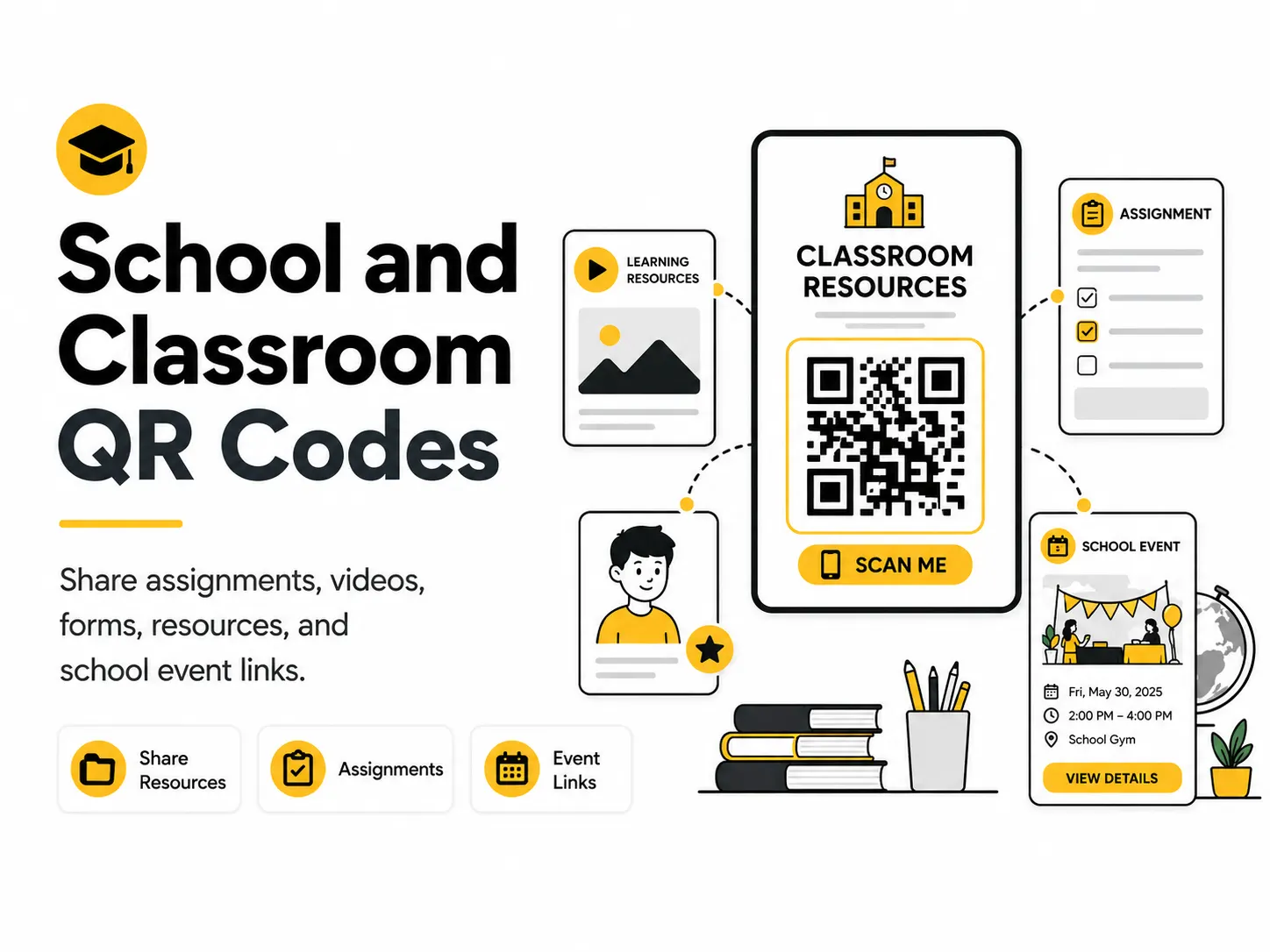
School and classroom QR codes help students, parents, and staff reach resources quickly. They work on handouts, hallway signs, classroom stations, newsletters, and event materials.
Quick answer
Use the free QR code generator for school and classroom qr codes
Students, parents, or visitors need quick access to assignments, forms, classroom resources, maps, or event information.
Use a school-approved resource page, form, worksheet, LMS page, calendar, or classroom website.
Topic path
Safety, privacy and scams
School and Classroom QR Codes belongs to the safety, privacy and scams path because the code is usually scanned from worksheets: 25-50 cm. wall signs: 1-2 m. Use this cluster when the QR code asks for trust, personal data, payment, login, donations, or public scanning. For this placement, read Are QR Codes Safe? and Static vs Dynamic QR Codes, then check school and classroom qr codes with QR Code Scanner and Decoder or QR Code Test Checklist.
Best QR content
Use a school-approved resource page, form, worksheet, LMS page, calendar, or classroom website.
Best placement
Use worksheets, classroom walls, newsletters, library signs, lab stations, parent handouts, and event boards.
Expected scan distance
Worksheets: 25-50 cm. Wall signs: 1-2 m.
Recommended generator setting
Choose Website URL or PDF or Document URL depending on the resource.
Open with Website URLPractical examples
Print, contrast, and material risks
- Student privacy matters.
- Login-only resources can block families.
- Classroom walls need durable readable placement.
CTA text that fits this use case
- Open assignment
- Scan for resources
- Submit form
- View class calendar
- Open lab instructions
Destination page checklist
- Grade-appropriate content.
- Accessible resource files.
- Clear teacher/school context.
- No unnecessary personal data collection.
Before publishing
- Open on a student device.
- Check login requirements.
- Scan from wall distance.
- Verify accessibility of documents.
Static QR fit, privacy, and measurement
Static works for stable classroom pages or worksheets. Use pages you control for changing assignments.
Do not encode student names, grades, private classroom links, or personal information in public QR codes.
Use school-approved analytics only when appropriate and privacy-safe.
Follow school privacy rules and policies for student data and third-party tools.
Print or screen specs
- Use high contrast for classroom lighting.
- Print text alternatives.
- Use larger codes for wall stations.
Accessibility note
Provide typed URLs and non-scan instructions for students without camera access.
How to create this QR code
- 1Open the free QR code generator and choose Website URL.
- 2Choose Website URL or PDF or Document URL depending on the resource.
- 3Customize the foreground color, background color, size, margin, and error correction level if needed.
- 4Download the QR code as PNG or SVG.
- 5Scan the finished QR code on a phone before using it in print or sharing it publicly.
Best practices
- Use destinations that students can access without private teacher permissions.
- Include a short written link for accessibility.
- Check links on school-managed devices.
Common mistakes
- Linking to a document that is not shared publicly.
- Using too many codes on one page.
- Forgetting to update links after a class unit ends.
Ready to make one?
When your destination is ready, open the generator, choose Website URL, and test the finished code before using it in public.
Frequently Asked Questions
Can classroom QR codes link to private assignments?
Only if access is intentionally controlled and students can sign in. Do not print private tokens in QR codes.
What should I put next to a classroom QR code?
Use a clear label such as 'Scan for today's lab instructions' plus a short typed alternative.
How do I create school and classroom qr codes?
Open the free QR code generator, choose Website URL, enter a classroom resource, assignment, form, video, or school page URL, customize the design if needed, then download the QR code as PNG or SVG.
What should a school and classroom qr code link to?
Use the destination that matches the scan moment. Good options include link a worksheet to a tutorial video, add a qr code to a parent permission form, create station activity codes around a classroom.
Is this school and classroom qr code maker free?
Yes. QR For Everyone is a free QR code maker for static QR codes, including school and classroom qr codes, with PNG, SVG, WEBP, and JPG export options.
Can I use school and classroom qr codes for business?
Yes. QR For Everyone can be used for personal, nonprofit, educational, and business projects. You are responsible for the content and links you encode.
Can I edit the QR code after printing?
This tool currently creates static QR codes. A static QR code cannot be edited after printing, so use a destination URL you control if the content may change later.