
QR use case
Free Wi-Fi QR Code Generator
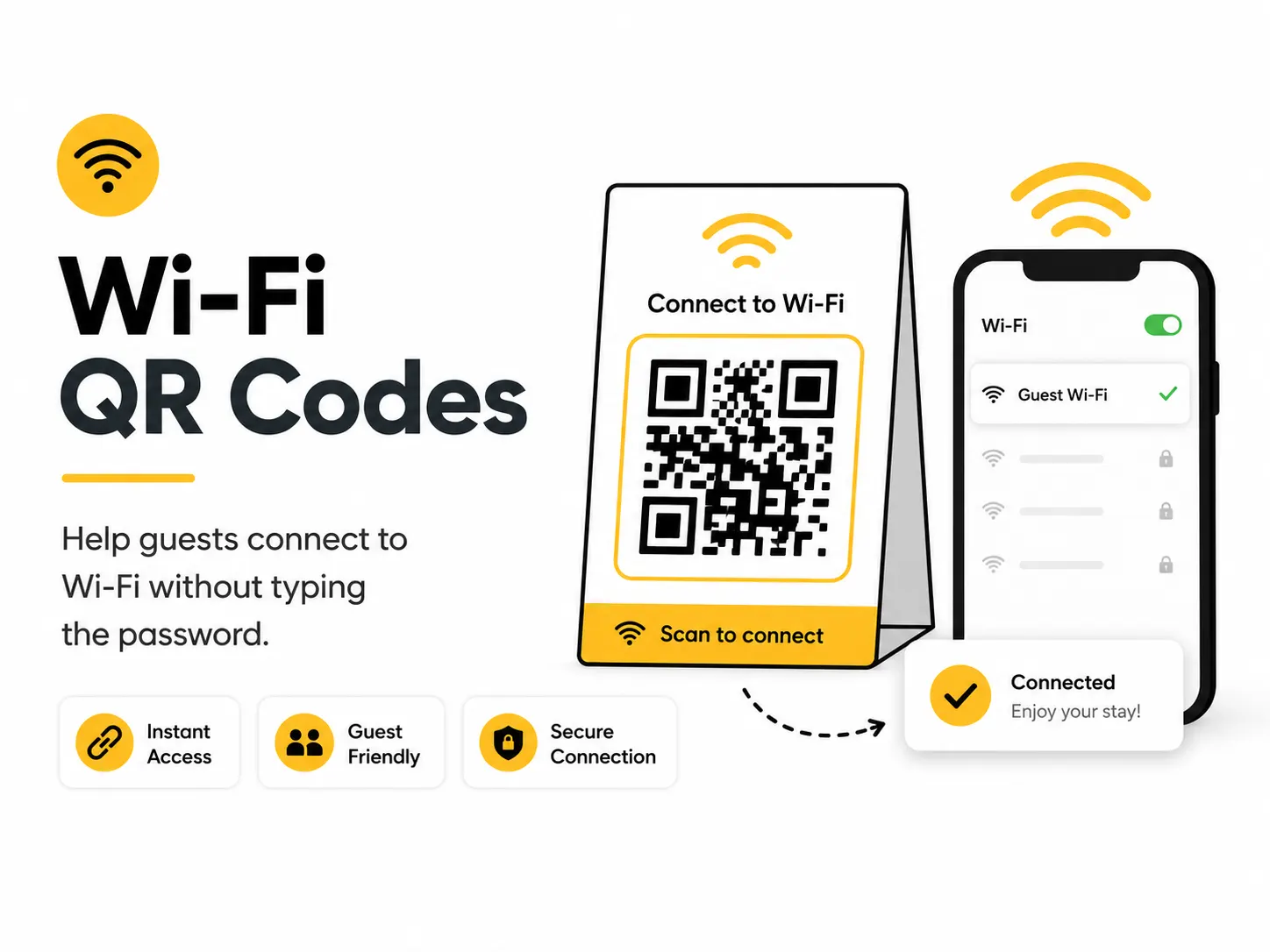
A Wi-Fi QR code lets people join a network by scanning instead of typing a password. It is useful anywhere guests, customers, or team members need quick access.
Quick answer
Use the free QR code generator for wi-fi qr codes
Guests need to join Wi-Fi quickly without typing a long SSID and password.
Use the Wi-Fi QR payload with SSID, security type, password, and hidden-network setting.
Topic path
Menus and hospitality
Wi-Fi QR Codes belongs to the menus and hospitality path because the code is usually scanned from usually handheld or counter distance: 25-80 cm. Use this cluster when the scan happens at a table, reception desk, room, counter, or waiting area. For this placement, read How to Create a QR Code for a Restaurant Menu and Best QR Code Size for Print, then check wi-fi qr codes with Wi-Fi QR Sign Generator or QR Code Size Calculator.
Best QR content
Use the Wi-Fi QR payload with SSID, security type, password, and hidden-network setting.
Best placement
Use room cards, reception signs, cafe counters, classroom walls, rental welcome books, or office visitor desks.
Expected scan distance
Usually handheld or counter distance: 25-80 cm.
Recommended generator setting
Choose Wi-Fi and enter SSID, security type, password, and hidden network setting.
Open with Wi-FiPractical examples
Print, contrast, and material risks
- Wrong security type breaks connection.
- Changed passwords require reprinting.
- Public signs can expose passwords beyond intended guests.
CTA text that fits this use case
- Scan to join Wi-Fi
- Guest Wi-Fi
- Connect here
- Scan for internet
- Join the guest network
Destination page checklist
- No landing page is needed for Wi-Fi payloads, but a nearby sign should show the network name and support instructions.
Before publishing
- Scan on iPhone and Android.
- Check exact SSID capitalization.
- Test WPA/WPA2 or no-password setting.
- Try the printed sign, not only the screen preview.
Static QR fit, privacy, and measurement
Static works well for stable guest Wi-Fi credentials. Reprint immediately when SSID, password, or security type changes.
Use a guest network, not a staff or admin network. Treat the printed password as public to anyone who can see the sign.
Wi-Fi QR scans are not measured by this static code. Network equipment may have its own guest usage logs.
Print or screen specs
- Use the Wi-Fi sign generator for printable signs.
- Hide or show the printed password based on venue policy.
- Use strong contrast because signs are often read from angles.
Accessibility note
Print the network name and a support note for guests whose devices do not support Wi-Fi QR scanning.
How to create this QR code
- 1Open the free QR code generator and choose Wi-Fi.
- 2Choose Wi-Fi and enter SSID, security type, password, and hidden network setting.
- 3Customize the foreground color, background color, size, margin, and error correction level if needed.
- 4Download the QR code as PNG or SVG.
- 5Scan the finished QR code on a phone before using it in print or sharing it publicly.
Best practices
- Use a guest network rather than a private admin network.
- Reprint the QR code after changing the password.
- Keep the code visible but away from sensitive staff-only areas.
Common mistakes
- Mistyping the network name or password.
- Using the wrong security type.
- Assuming the code will keep working after the Wi-Fi credentials change.
Ready to make one?
When your destination is ready, open the generator, choose Wi-Fi, and test the finished code before using it in public.
Frequently Asked Questions
Should I put my main Wi-Fi password in a QR code?
Use a guest network whenever possible. A printed Wi-Fi QR code is visible to anyone near the sign.
Will Wi-Fi QR codes work on every phone?
Most modern phones support them, but some older devices or camera apps may require manual network entry.
How do I create wi-fi qr codes?
Open the free QR code generator, choose Wi-Fi, enter the exact network name, password, security type, and hidden network setting, customize the design if needed, then download the QR code as PNG or SVG.
What should a wi-fi qr code link to?
Use the destination that matches the scan moment. Good options include display guest wi-fi in a cafe, put a wi-fi qr code in a vacation rental welcome book, share classroom or conference network access.
Is this wi-fi qr code maker free?
Yes. QR For Everyone is a free QR code maker for static QR codes, including wi-fi qr codes, with PNG, SVG, WEBP, and JPG export options.
Can I use wi-fi qr codes for business?
Yes. QR For Everyone can be used for personal, nonprofit, educational, and business projects. You are responsible for the content and links you encode.
Can I edit the QR code after printing?
This tool currently creates static QR codes. A static QR code cannot be edited after printing, so use a destination URL you control if the content may change later.