QR use case
Free Google Review QR Code Generator
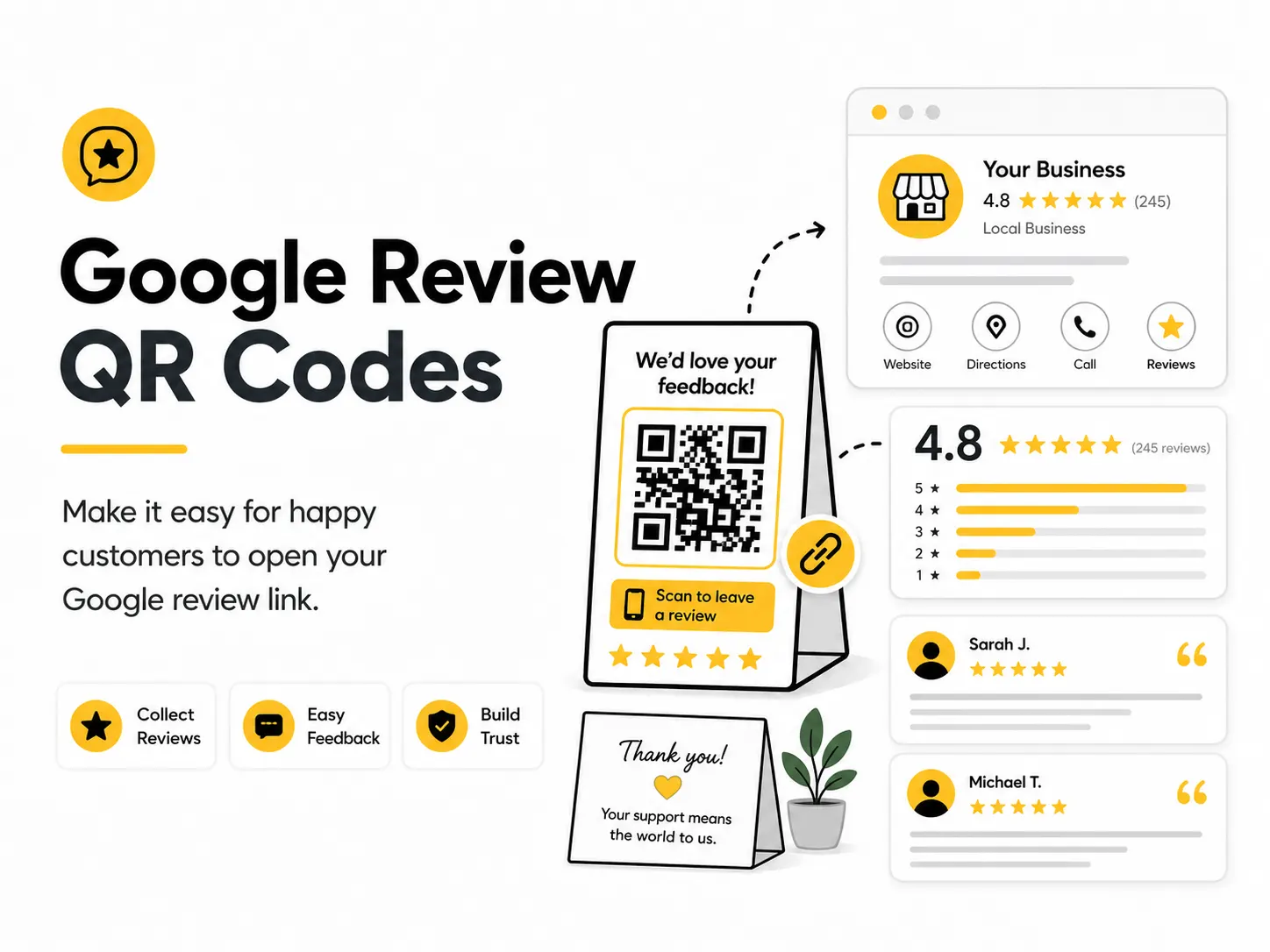
A Google review QR code helps customers leave feedback while the experience is still fresh. It is useful for counters, receipts, service cards, table tents, and follow-up print materials.
Quick answer
Use the free QR code generator for google review qr codes
A customer has just completed a visit or purchase and is willing to leave feedback with minimal friction.
Use the official Google review link for the correct business profile or a review instruction page you control.
Topic path
Social profiles and reviews
Google Review QR Codes belongs to the social profiles and reviews path because the code is usually scanned from counter or card distance: 25-70 cm. Use this cluster when platform prompts, profile trust, review policies, or social attribution affect the scan. For this placement, read How to Create a QR Code for a Link and Are QR Codes Safe?, then check google review qr codes with UTM Link Builder or QR Code Test Checklist.
Best QR content
Use the official Google review link for the correct business profile or a review instruction page you control.
Best placement
Use checkout signs, receipts, appointment cards, table cards, packaging inserts, and follow-up handouts.
Expected scan distance
Counter or card distance: 25-70 cm.
Recommended generator setting
Choose Review Link and paste the official review URL.
Open with Review LinkPractical examples
Print, contrast, and material risks
- Wrong business profile creates bad reviews data.
- Asking at the wrong moment lowers trust.
- Review policies must be respected.
CTA text that fits this use case
- Leave a Google review
- Review your visit
- Tell us how we did
- Scan to share feedback
- Rate your experience
Destination page checklist
- Correct business identity.
- Clear review instructions.
- No gating or misleading incentives.
- Fallback contact path for problems.
Before publishing
- Open on iPhone and Android.
- Verify correct business profile.
- Check logged-out behavior.
- Review wording for policy risk.
Static QR fit, privacy, and measurement
Static works if the official review URL stays valid. Re-test periodically because platform URLs and business profiles can change.
Reviews are public. Do not pressure customers to include private details, and avoid incentives that violate platform policies.
Measure reviews through the platform dashboard; the static QR itself does not count scans.
Review requests should comply with the review platform's policies and local advertising rules.
Print or screen specs
- Place near the end of service.
- Use clear business branding.
- Keep the QR away from payment buttons to avoid confusion.
Accessibility note
Provide a written business name or feedback email for customers who do not scan.
How to create this QR code
- 1Open the free QR code generator and choose Review Link.
- 2Choose Review Link and paste the official review URL.
- 3Customize the foreground color, background color, size, margin, and error correction level if needed.
- 4Download the QR code as PNG or SVG.
- 5Scan the finished QR code on a phone before using it in print or sharing it publicly.
Best practices
- Use the official review link for your profile.
- Ask for honest feedback without pressure.
- Place the code where satisfied customers naturally pause.
Common mistakes
- Incentivizing reviews in a way that violates platform rules.
- Linking to the wrong business location.
- Using a QR code that looks like a download button or ad.
Ready to make one?
When your destination is ready, open the generator, choose Review Link, and test the finished code before using it in public.
Frequently Asked Questions
Can I offer a reward for a Google review?
Review incentives can violate platform rules. Use neutral wording and ask for honest feedback.
How do I avoid linking to the wrong profile?
Open the review link on multiple devices and confirm the displayed business name before printing.
How do I create google review qr codes?
Open the free QR code generator, choose Review Link, enter your official Google review link or business review URL, customize the design if needed, then download the QR code as PNG or SVG.
What should a google review qr code link to?
Use the destination that matches the scan moment. Good options include place a review qr code at checkout, add it to a thank-you card after service, print it on appointment reminders.
Is this google review qr code maker free?
Yes. QR For Everyone is a free QR code maker for static QR codes, including google review qr codes, with PNG, SVG, WEBP, and JPG export options.
Can I use google review qr codes for business?
Yes. QR For Everyone can be used for personal, nonprofit, educational, and business projects. You are responsible for the content and links you encode.
Can I edit the QR code after printing?
This tool currently creates static QR codes. A static QR code cannot be edited after printing, so use a destination URL you control if the content may change later.