QR use case
Free Flyer QR Code Generator
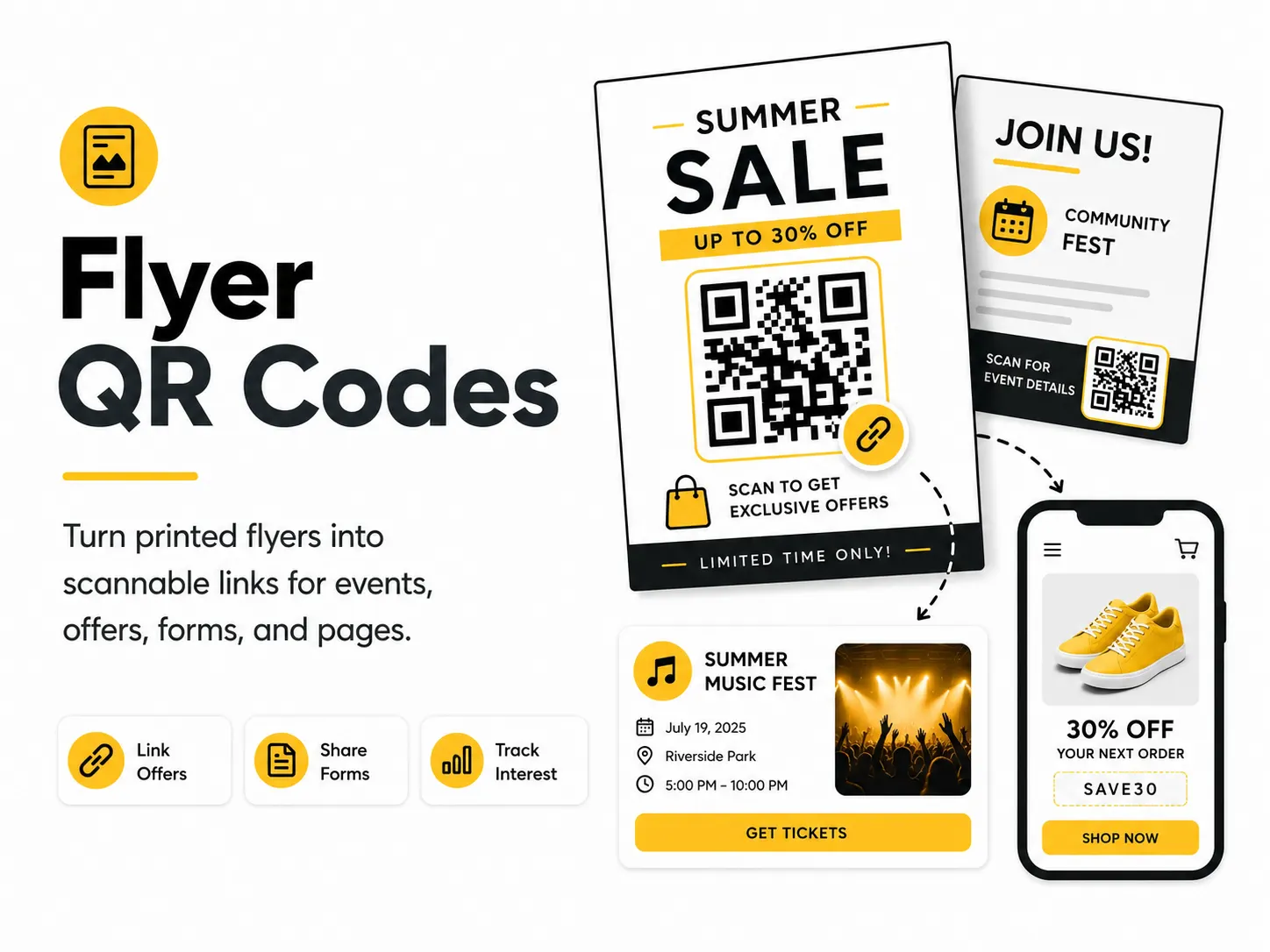
A flyer QR code gives people a fast next step after they notice your printed material. It is especially useful for events, local promotions, signups, coupons, and community notices.
Quick answer
Use the free QR code generator for flyer qr codes
A person holding a flyer wants to act on the offer, event, form, menu, coupon, or campaign without typing a URL.
Use the exact campaign page, registration form, menu, coupon, booking page, or product offer promoted by the flyer.
Topic path
Printing, size and contrast
Flyer QR Codes belongs to the printing, size and contrast path because the code is usually scanned from handheld: 30-60 cm. Use this cluster before ordering business cards, flyers, posters, stickers, packaging, menus, or signs. For this placement, read Best QR Code Size for Print and QR Code Design Best Practices, then check flyer qr codes with QR Code Size Calculator or QR Code Contrast Checker.
Best QR content
Use the exact campaign page, registration form, menu, coupon, booking page, or product offer promoted by the flyer.
Best placement
Use front or back panels, tear-off sections, handouts, mailers, and local bulletin boards.
Expected scan distance
Handheld: 30-60 cm.
Recommended generator setting
Choose Website URL, or build a UTM URL first for campaign attribution.
Open with Website URLPractical examples
Print, contrast, and material risks
- Crowded flyer layouts shrink quiet zone.
- Colored paper lowers contrast.
- Mismatch between flyer promise and landing page hurts conversions.
CTA text that fits this use case
- Scan to register
- Claim offer
- Open menu
- Book now
- Get directions
- View details
Destination page checklist
- Same offer or event as the flyer.
- Mobile form or action.
- Deadline and location if relevant.
- Fast load.
Before publishing
- Scan a printed proof.
- Check offer deadline.
- Submit the form on mobile.
- Test colored paper contrast.
Static QR fit, privacy, and measurement
Static works for one-time flyers if the destination remains live for the whole campaign. Use a page you control for changes.
Avoid personal data in flyer URLs. If collecting form data, make the destination trustworthy and clear.
Use utm_source=flyer and a campaign name to separate scans from other print placements.
Print or screen specs
- Use UTM Link Builder for flyer source tracking.
- Keep code away from folds.
- Use at least a practical handheld size.
Accessibility note
Include a short URL and key deadline in text.
How to create this QR code
- 1Open the free QR code generator and choose Website URL.
- 2Choose Website URL, or build a UTM URL first for campaign attribution.
- 3Customize the foreground color, background color, size, margin, and error correction level if needed.
- 4Download the QR code as PNG or SVG.
- 5Scan the finished QR code on a phone before using it in print or sharing it publicly.
Best practices
- Place the QR code where it has enough white space.
- Use a clear call to action near the code.
- Print a test copy at the final flyer size.
Common mistakes
- Crowding the code with too much text.
- Using low contrast on colored paper.
- Sending scanners to a page that does not match the flyer.
Ready to make one?
When your destination is ready, open the generator, choose Website URL, and test the finished code before using it in public.
Frequently Asked Questions
Where should the QR code go on a flyer?
Place it near the action text with enough quiet zone, not squeezed into a busy corner.
Can I track flyer QR scans?
Use a UTM URL and analytics on your destination page. The QR image itself does not track scans.
How do I create flyer qr codes?
Open the free QR code generator, choose Website URL, enter the campaign page, form, coupon, menu, or event link, customize the design if needed, then download the QR code as PNG or SVG.
What should a flyer qr code link to?
Use the destination that matches the scan moment. Good options include link an event flyer to ticket sales, send a promotion flyer to a coupon page, add a qr code to a community signup form.
Is this flyer qr code maker free?
Yes. QR For Everyone is a free QR code maker for static QR codes, including flyer qr codes, with PNG, SVG, WEBP, and JPG export options.
Can I use flyer qr codes for business?
Yes. QR For Everyone can be used for personal, nonprofit, educational, and business projects. You are responsible for the content and links you encode.
Can I edit the QR code after printing?
This tool currently creates static QR codes. A static QR code cannot be edited after printing, so use a destination URL you control if the content may change later.